
"Where did we write that down?"
If you have heard this sentence in one of your last meetings, this post is for you. Most teams I talk to do not have a meeting notes problem. They take notes. They even use templates. What they have is a findability problem: notes are scattered across personal spaces, team spaces, a project space nobody remembers creating, and a page called "Meeting Notes (new)".
Be honest for a second and check how many of these apply to you:
- You search for a decision or information and find three pages with the same title in three different spaces.
- New colleagues ask where the notes of the weekly sync live, and nobody gives the same answer twice.
- Every new project starts with the question "Do we need a new space for this?", and the answer depends on who you ask.
- Your 1-on-1 notes sit somewhere you hope nobody else can read.
If you nodded at least twice: welcome to the club. I have been there too, and many of our customers.
Why you should fix this now, not "someday"
Ask yourself: what happens if you leave it as it is for another six months?
- Decisions get made twice. If nobody finds the notes from March, the same discussion happens again in September, with the same people, and sometimes with a different outcome.
- Onboarding gets slower with every new hire. Each one learns a different, private version of "where things are". That's not culture, that's chaos!
- Your AI tools get worse, not better. Rovo, Meetical AI and every other assistant can only use the context they can find. Scattered, unlabeled notes are invisible context. As I wrote in our AI Meeting Notes launch post: AI needs good context. And a one-page yearly summary is better context for any AI than 50 raw meeting notes.
- Restructuring gets more expensive every week. Moving 50 pages is an afternoon. Moving 2,000 pages, fixing links and permissions, is a project.
The good news: you do not need a big migration to get this right. You need a few clear rules that everyone can apply without asking. Here are the ones we recommend to our customers.
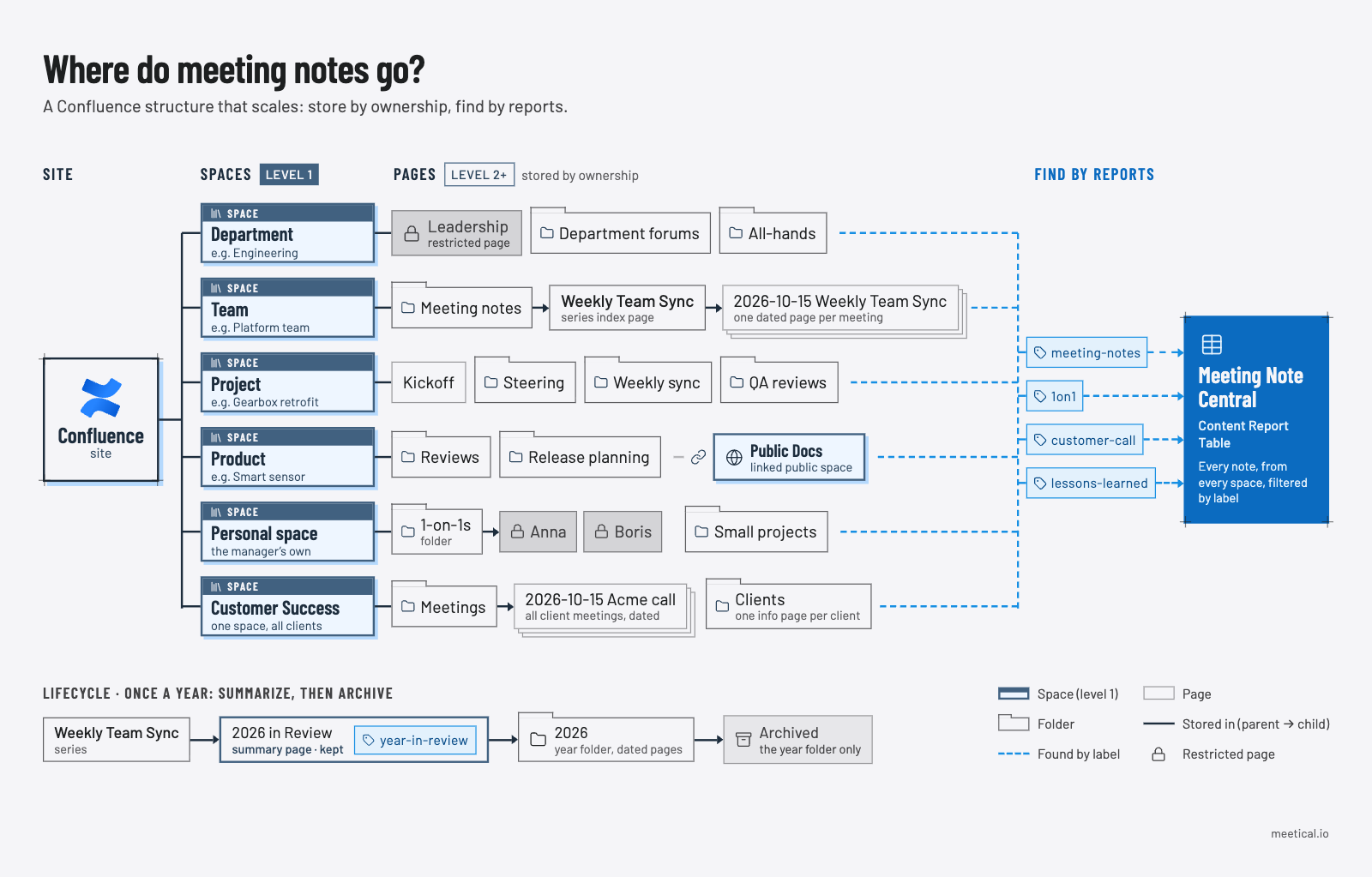
The core idea: store by ownership, find by reports
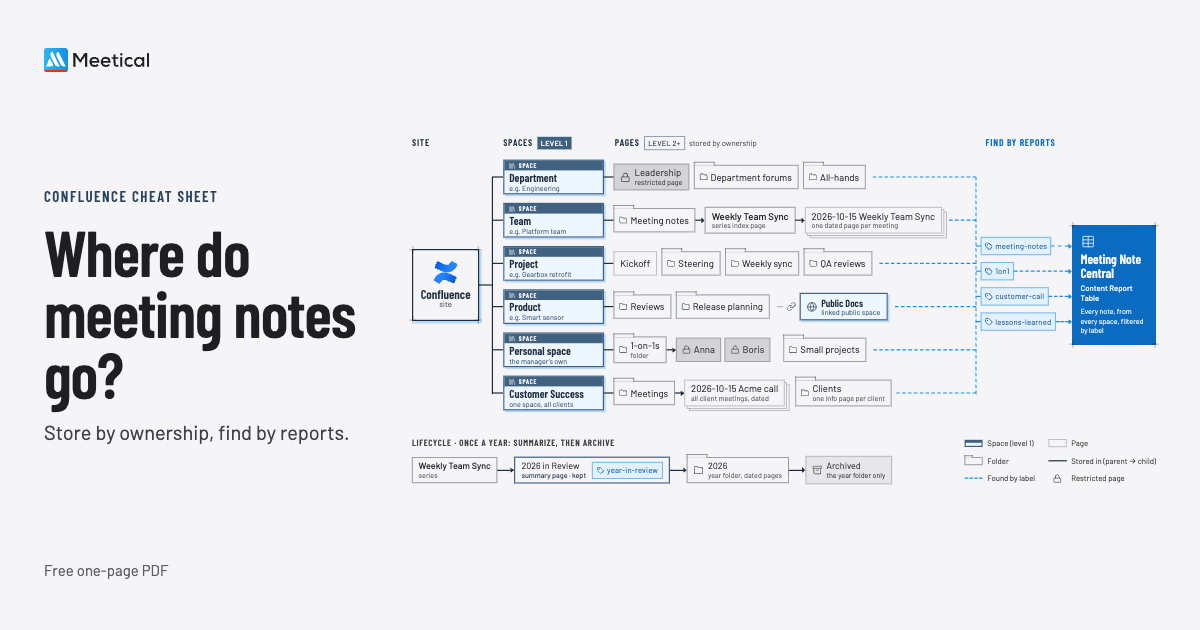
Download the cheat sheet (PDF).
Most teams try to answer one question with their space structure: "Where can I see all our meetings?" That leads to one giant "Meetings" space, which nobody owns and nobody maintains.
Split it into two questions instead:
- Where does a meeting note live? In the space of whoever owns the topic: the team, the project, the product, the department.
- Where do I see all of them? In a report that pulls them together by label, wherever they are stored.
You do not need to store all notes in the same place to have a complete track record of all your meetings. Labels and reports do that job for you.
Which spaces to create (and which not)
Think in six kinds of owners: departments, teams, projects, products, people and clients. Here is when each one deserves its own space.
1. Departments: one space each
Create a space for each department, for example Marketing, Engineering, Finance or HR. This is where department-wide meetings (all-hands, leadership syncs, quarterly planning) and long-lived knowledge go.
2. Teams: a space once the team is real
Create a space for a team if it has more than two people and meets regularly, at least once a month. Smaller or occasional groups are fine as a parent page or folder inside the department space.
3. Projects: a space only if the project is big enough
Create a space for a project if it has more than two internal contributors and you expect more than five pages, or if its timeline is longer than a couple of weeks.
Everything smaller does not need its own space.
My advice: Group small projects in the personal space of the project lead. This is also where the 1-on-1s belong to (see point 5).
As alternative, create one shared "Other Projects" space with a folder per project, or use the Departement space. If you use Meetical to automate your notes, then add the label meetical-parent to that folder so the notes end up where they belong.
This one rule alone stops most of the space sprawl I see in Confluence instances.
4. Products: always a space, regardless of team size
Create a space for each product you manage, even if only one person works on it. Products live for years, and their decisions, roadmaps and review meetings belong together.
Tip: Create a separate public documentation space for each product. Your internal product space keeps meeting notes, discussions and drafts. The docs space contains only what customers should read. That way you can make the whole docs space public, or publish it as a clean documentation site with an app. This is exactly how we built docs.meetical.io: written in Confluence, published with Scroll Sites.
5. People: 1-on-1s in the manager's personal space
For 1-on-1 meetings, use the personal space of the manager or coach. Create a parent page or folder per direct report, and keep every 1-on-1 below it.
Apply page restrictions so only the two participants can view the notes. Two things worth knowing:
- View restrictions on a parent page are inherited by its child pages, so restricting the parent page per person is a good safety net.
- Do not assume a personal space is private by default. Check the space permissions, and restrict the pages anyway.
Looking for a good 1-on-1 format? Read our 5 ways for tech managers to make the most of 1-on-1 meetings.
6. Clients: one space, a page per client
We generally do not recommend a space for each client. If you use Confluence as a lean CRM, create one Customer Success (or "Clients") space and a parent page or folder for each customer.
Use that customer page as the account overview: key metrics, account manager, contacts, contract details, open topics. All meeting notes with that customer go below it.
Every company is different, though. If you work with only a few large accounts, and the projects at each customer overlap heavily, flip the rule and give each of them its own space.
Inside a space: keep it boring and predictable
Inside each space, group meetings by series, not by topic or date. Use high level folders to split audiences.
In department spaces, add one split by audience: a restricted Leadership page for budget, hiring and management reviews, and an open Department Forums area for cross-team meetings like a change control board or standards committee.

If a meeting is about one specific product or project, it belongs in that product’s or project’s space.
Once the right space and index pages exists, a few conventions make every meeting note easy to find:
- One parent page per recurring meeting. "Weekly Engineering Sync" is a parent page, every occurrence is a child page below it. Use a parent page (not a folder) when you want to put context on it: purpose, attendees, open tasks. Use a folder when you only want to group content, for example by year (see archiving below). Meetical does this automatically for you.
- Date first in the title. "2026-10-15 Weekly Engineering Sync" sorts correctly and is unique. Remember that page titles must be unique within a space.
- Labels in your templates. Add the label
meeting-notes(plus e.g.1on1,retro,customer-call) to your meeting templates. Every page created from the template inherits them, so nobody has to remember. - Shallow trees. Whenever possible keep it lean: Space → Meeting Notes -> meeting series → occurrence.
Our guide for meeting notes index pages shows how to set up such a parent page with an open tasks report and a list of all notes below it.
How to create a central view over all your meeting notes
Now to the question everyone asks: "But I want to see all meetings in one place!" Here is how, without moving a single page:
- Create a space called "Meeting Note Central".
- Create a page and add the Content Report Table macro.
- Set the label filter to
meeting-notes. - Increase the maximum number of results (the default is 20) and save.
That's it: you get one report with every meeting note across all spaces, sorted by last modified, with its creator. Because the macro respects permissions, everyone only sees the notes they are allowed to see, so restricted 1-on-1s stay private.
Remember: The labels you set on a template, are applied to each page created from that templates. Both Confluence and Meetical behave like this.
A few variations:
- Keep it simple: Skip the new space and create the report page in your personal space. Perfect for managers who only want their own overview.
- Go further: Rename the space to "Project Reports" and add more reports: one per label (
retro,customer-call,decision), a Task Report for open action items, or a report per department using the space filter. - Build your organization's memory: Add a second report for the label
year-in-review(see archiving below). One summary page per meeting series and year, all in one place.
Archive yearly, keep the memory
At the start of each year, move last year's meeting notes into a year folder (e.g. 2026) inside each series. Before archiving that folder, ask Rovo to go through it: "Which decisions, open topics and lessons from these meetings still matter?" Turn the answer into a short "2026 in Review" page next to the series index and give it the label year-in-review.
Then use Confluence's archive feature on the year folder. The old pages leave the page tree and default search, so current work stays uncluttered, but you can restore them at any time, and the summary page keeps what matters findable. Do it in that order: archived pages drop out of search, so summarize first.
Would you like this to happen automatically? We're building it into Meetical, so tell us what your yearly review should include.
Your 30-minute start
You do not need to reorganize everything today. Start with the next meeting:
- Ensure the
meeting-noteslabel is on your meeting templates. Add appropriate labels that can be useful for reports such ascustomer-call. - Create the "Meeting Note Central" page with the Content Report Table.
- Agree on the space rules with your team: share the Confluence structure cheat sheet (PDF) and put it on a page everyone can find.
- Move only the notes you actively use. Old notes become findable through the label as soon as you add it, no move required.
- Put a yearly "Archive & Review" meeting in your calendar for early January.
Six months from now, "Where did we write that down?" will be a question with one answer.
How Meetical does this for you
Rules only work if they are easy to follow. That's why we built Meetical:
- Create meeting notes straight from your Google or Outlook calendar, in the right space and below the right parent page.
- Recurring meetings get a new page for every occurrence automatically, in the same series, with the same template and labels.
- The Meetical meeting report lists all notes of a series, and the task report collects every open action item.
- Page restrictions can be applied to the meeting participants, so 1-on-1s stay private without extra clicks.
- Meetical AI joins your meetings and writes the notes into exactly that page, so your structure stays clean even when nobody takes notes by hand.
Try Meetical free for 30 days and let your calendar build your Confluence structure for you.
How do you organize meeting notes in your Confluence? I'd love to hear what works for you, just reply to our newsletter or reach out on LinkedIn.