


Meetical AI
Meetical AI helps you capture and document meetings automatically by turning meeting conversations into structured notes directly in Confluence.
After joining a meeting, Meetical AI transcribes the discussion and uses AI to generate a clear summary of what was discussed. It can identify key decisions, extract action items, and assign them to the right people based on the meeting context. This helps reduce manual note-taking, improves documentation quality, and makes it easier for teams to keep track of responsibilities and follow-up tasks.
Because the notes are added directly to your connected Confluence page, meeting outcomes are documented in one central place where they can be reviewed, edited, and shared with the team. This makes Meetical AI especially useful for keeping meeting documentation consistent, actionable, and easy to access later.
Step 1 - Open Meetical Calendar
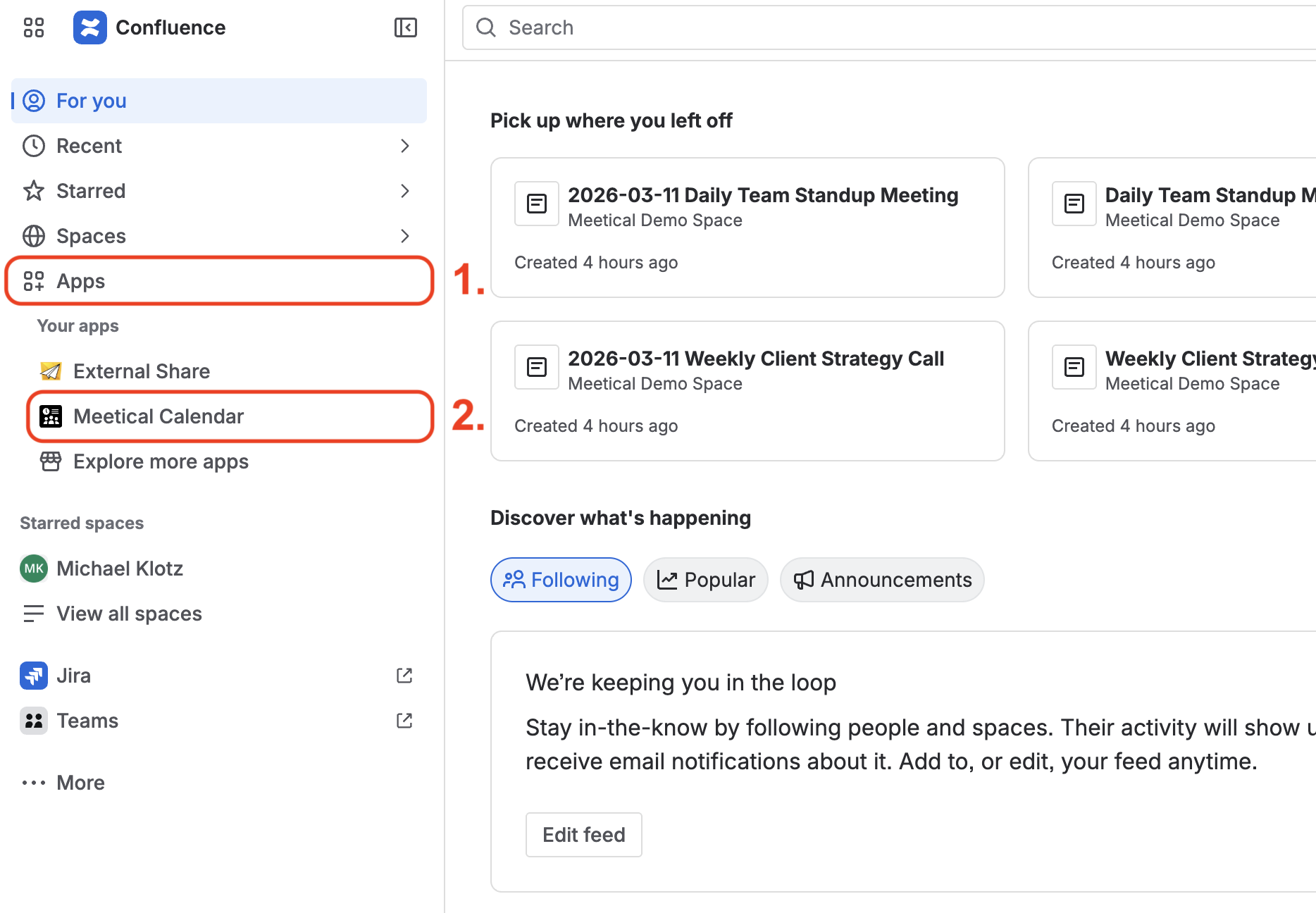
To start using Meetical AI, open the Meetical Calendar app in Confluence.
In Confluence:
- In the left-hand navigation, select Apps.
- Click Meetical Calendar.
if you haven't installed Meetical yet, follow this link: install Meetical
Step 2 - Select Meeting
Once you are in the app, you will see your calendar with all meetings and entries from your connected calendar, such as Microsoft 365 or Google Calendar.
Click on the meeting where you want to use Meetical AI.

Step 3 - Open AI Meeting Notes Dialoge
Select AI Meeting Notes.
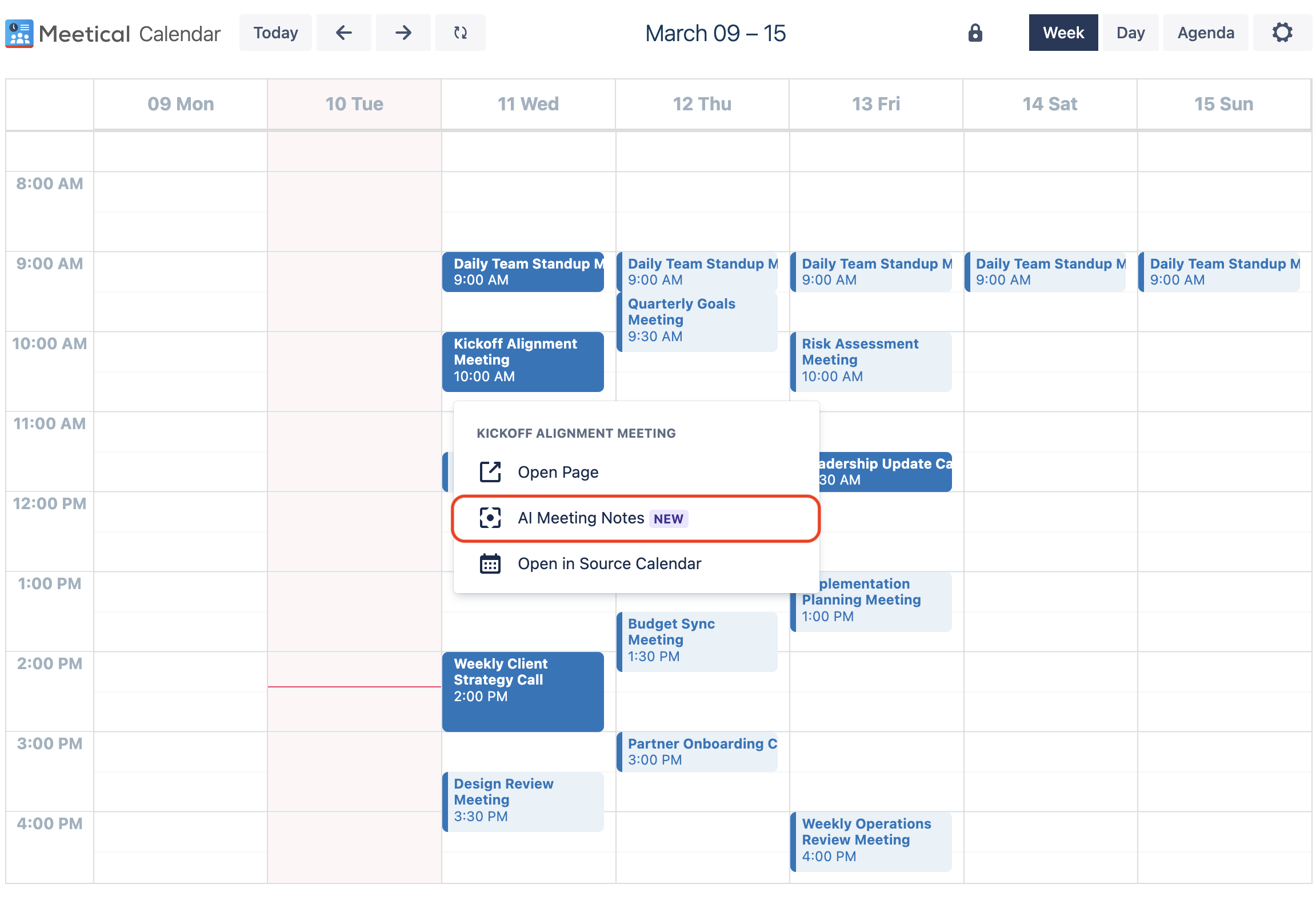
Note: If no page is already connected to the calendar entry, you can create one either from the popup window or later in the AI Meeting Notes window that appears after clicking AI Meeting Notes.
Step 4 - Attend Meeting and Invite Bot
In the AI Meeting Notes window, you can complete the following steps:
1. Invite the bot as a participant
If a conference link is included in your calendar entry, Meetical AI detects it automatically and adds it for you.
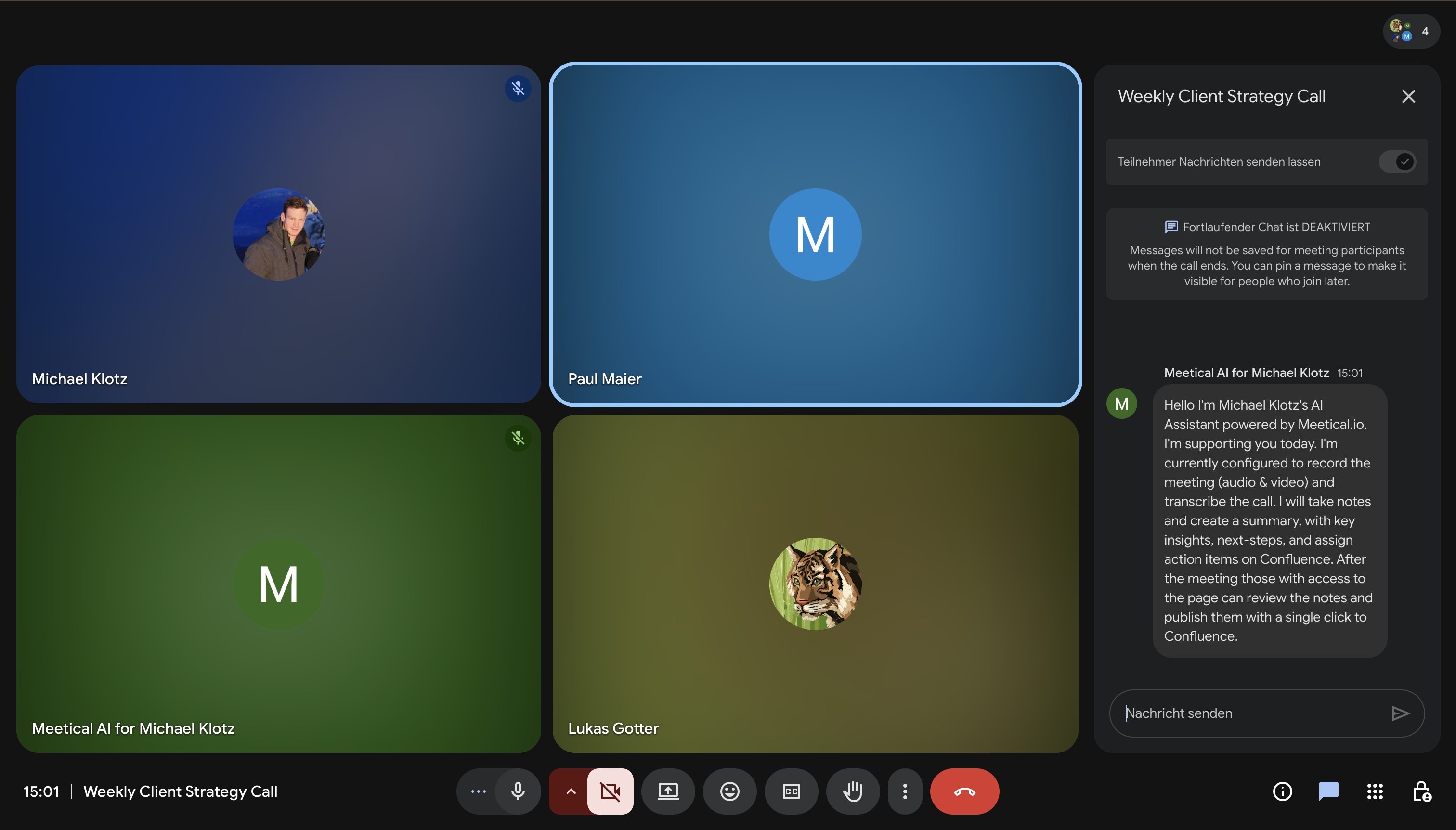
Once the meeting has started, click Invite Bot Now to invite the bot to your Zoom, Teams, Google Meet, or other online meeting.

The bot then joins the meeting, listens to your team’s discussion, and transcribes the entire meeting in whatever language is spoken.
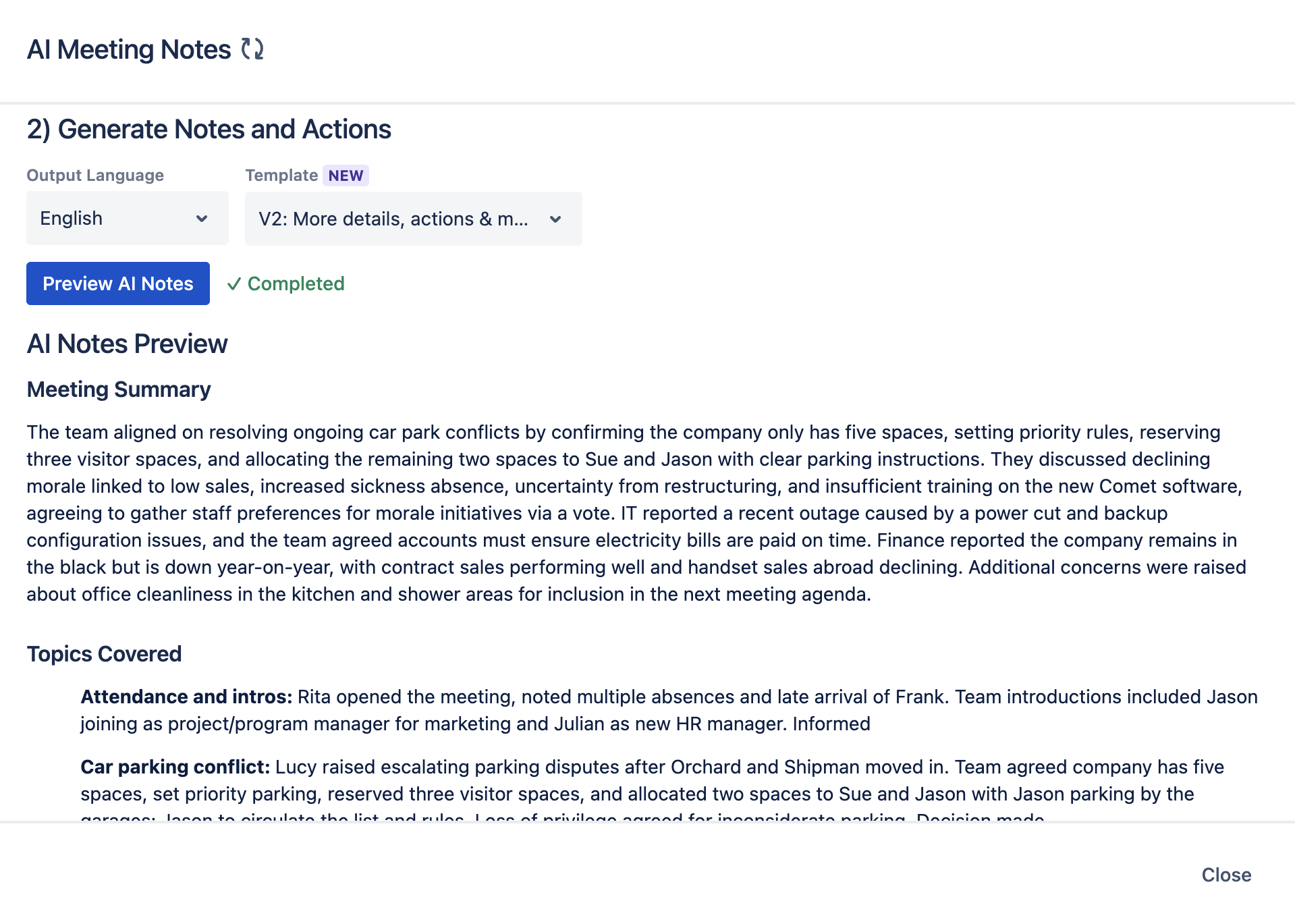
2. Generate Notes and Actions:
When the meeting ends, the bot leaves automatically.
You can then:
- Choose an output language.
- Select your preferred template.
- Click Preview AI Notes.
Meetical AI will then create a summary based on the meeting transcript.
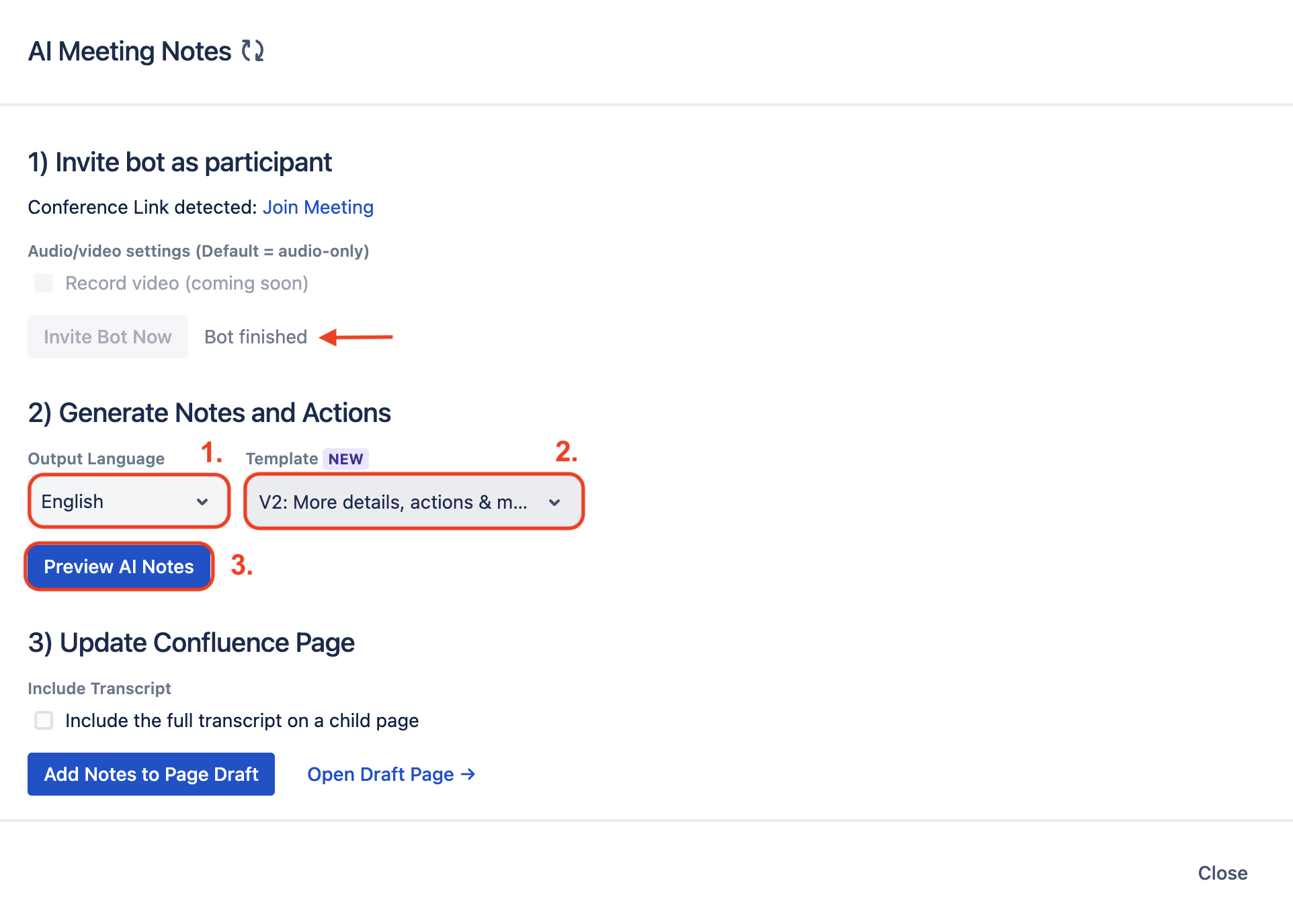
After the preview has been generated, you can still change the language or template and regenerate the notes if needed.
Once completed, you will see the preview.
Step 5 - Update Confluence Page:
If the preview looks good, click Add Notes to Page Draft (1) to add the notes to the connected Confluence page.
You can then open the draft page (2) once the process is complete.
If you want more detailed documentation, select Include the full transcript on a child page (3). This will add the full transcript to Confluence, which can also be used later to ask Rovo specific questions about the meeting.
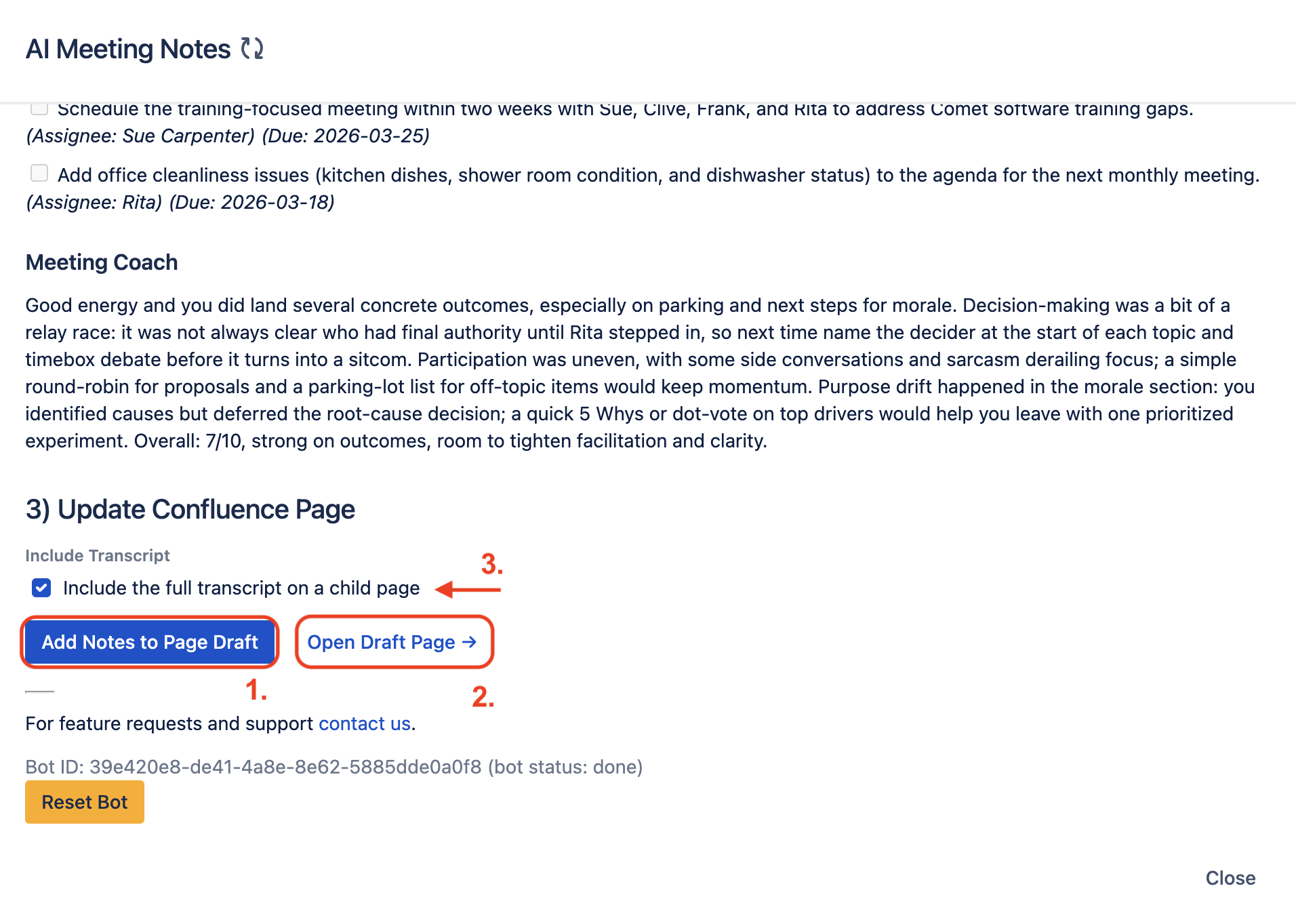
After that, you can edit the Confluence page as needed and make any changes you like.


